The Credit Wizard, launched from a Credit record, based on the Payment Wizard. This wizard serves as the only method of applying a Credit to an Order or Invoice, as Invoice Payments and Invoice Credits can not be created manually.
Open a Credit Record or Create a New One
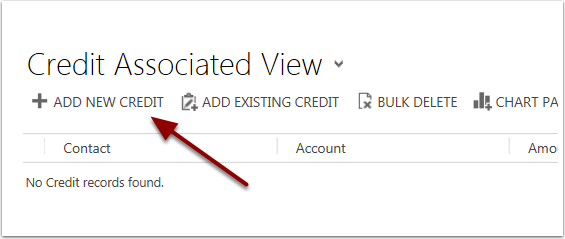
Navigate to the credit entity by using the menu tiles from the Contact or Account record to the Credit tab. You can also use advanced find to search for credit records if you are looking for one that already exists in the system.
Open the record for the existing credit or create a new one by select the + Add new Credit option
Enter or Review the amount of the credit. You may also add or review the Credit Date

If it is a new record you must save before opening the wizard. If it is an existing record the Applied and Unapplied Amounts will be displayed and you can go straight to the wizard.
Open the Credit Wizard by Clicking the More Options Button.
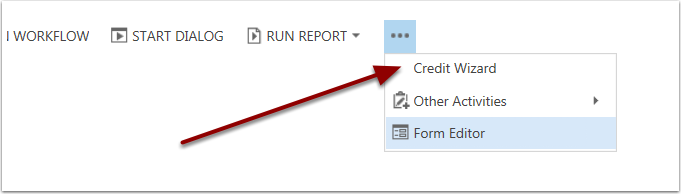
If the whole credit amount is applied you will only have the option to Unapply and Cancel.

If the whole credit amount is unapplied you will get the following options.

If the credit has amounts that are unapplied and applied you will need to select one of the following options.
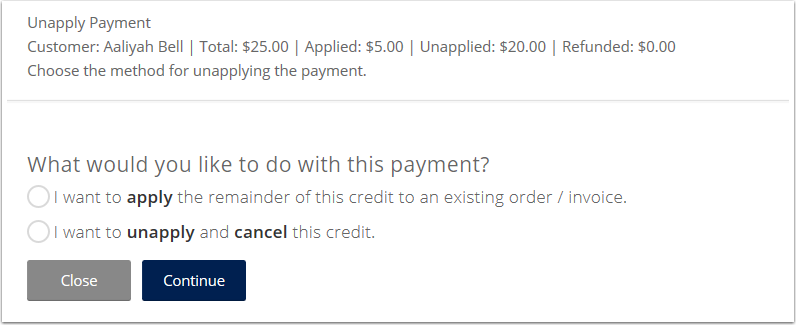
Apply Full Credit or Partial Credit to an existing order or invoice.
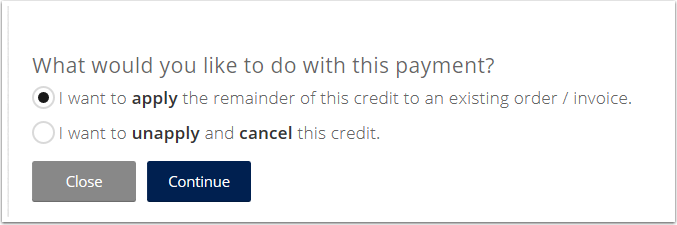
Select an Open Order or Invoice to apply the credit to and enter the amount to apply. Click Continue
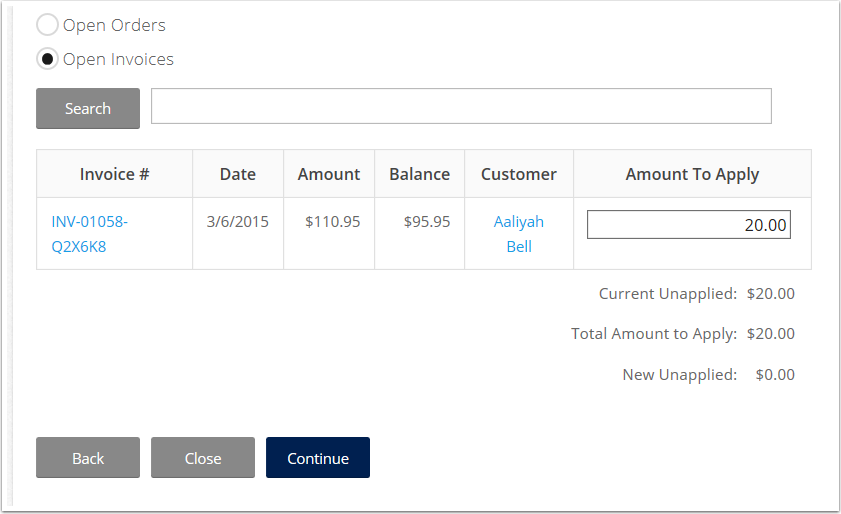
Distribute credit to specific products (if applicable) by clicking on the details link.
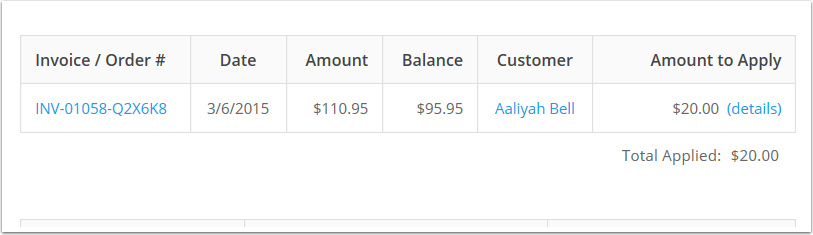
Confirm Information and Submit

If everything looks correct then click Submit. If it doesn't you can click Back to make changes or Close to cancel.
When you unapply and/or cancel a credit you will be given the option to cancel the invoice.

If you do not cancel the invoice the balance will remain on the contact or account record. If the invoice is not going to be paid and the balance should be removed you can cancel the invoice here. If the record is not applied to an invoice then there will be no invoice here and you can click continue to move to the next screen.
Confirm Information and Submit

The confirmation page will show you what is about to change on the record if the changes are correct click Submit. If they are not you can click Back to make changes or Close to cancel the wizard.
0 Comments