From the Contact or Account record navigate to Orders.
Click +Add New Order
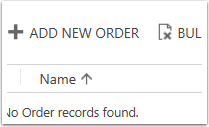
The Order form will open. Fill out all fields marked with a red asterisk (except Order ID): Name, Customer, Price List and Currency and click Save.

Order ID is a read only field and will be auto populated after the record is saved. Customer, Price List and Currency should also be auto populated when creating an order from a Contact record.
In the left navigation pane click Products.
In the ribbon bar click Add New Order Product.
The Order Product form will open. Order Products can either be existing Products from the Product Catalog meaning they already exist within the system, or one time Ad-hoc Write In Products. There is a radio button to select one option or the other. All fields marked with a red asterisk are required. When finished, click Save & Close.
The Order Product has now been added to the Order. If you reload the Order, it should appear as part.
In the center of the form click the + sign on the products menu and select a type of product to add.

Existing Product -- Add a product that exists in you current product list.
Write-in Product - Add a single instance product that is not and does not need to be in your product list.
Get Products - Take products from an already created opportunity.
Existing Product - a look up field will pop up in the product table use it to find the correct product for the order.
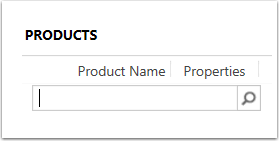
Write-in Product - Fill in the columns that appear for Product Name, Price Per Unit and Quanity

Get Products - A pop up will allow you to search for the opportunity you want to get products from.

Edit quantities, Apply discounts, or remove products from list until the order is correct.

0 Comments