Cobalt integrates with QuickBooks and GP out of the box. This makes it easy to export your accounting information from Cobalt to your accounting software.
1. Cobalt uses 'Accounting Export File Transformations' to make the accounting information you want to export "readable" by an accounting software. These files can be customized to include the information that you want to import into your accounting software.
2. Go to the settings record and go to the related 'Accounting Export File Transformations'
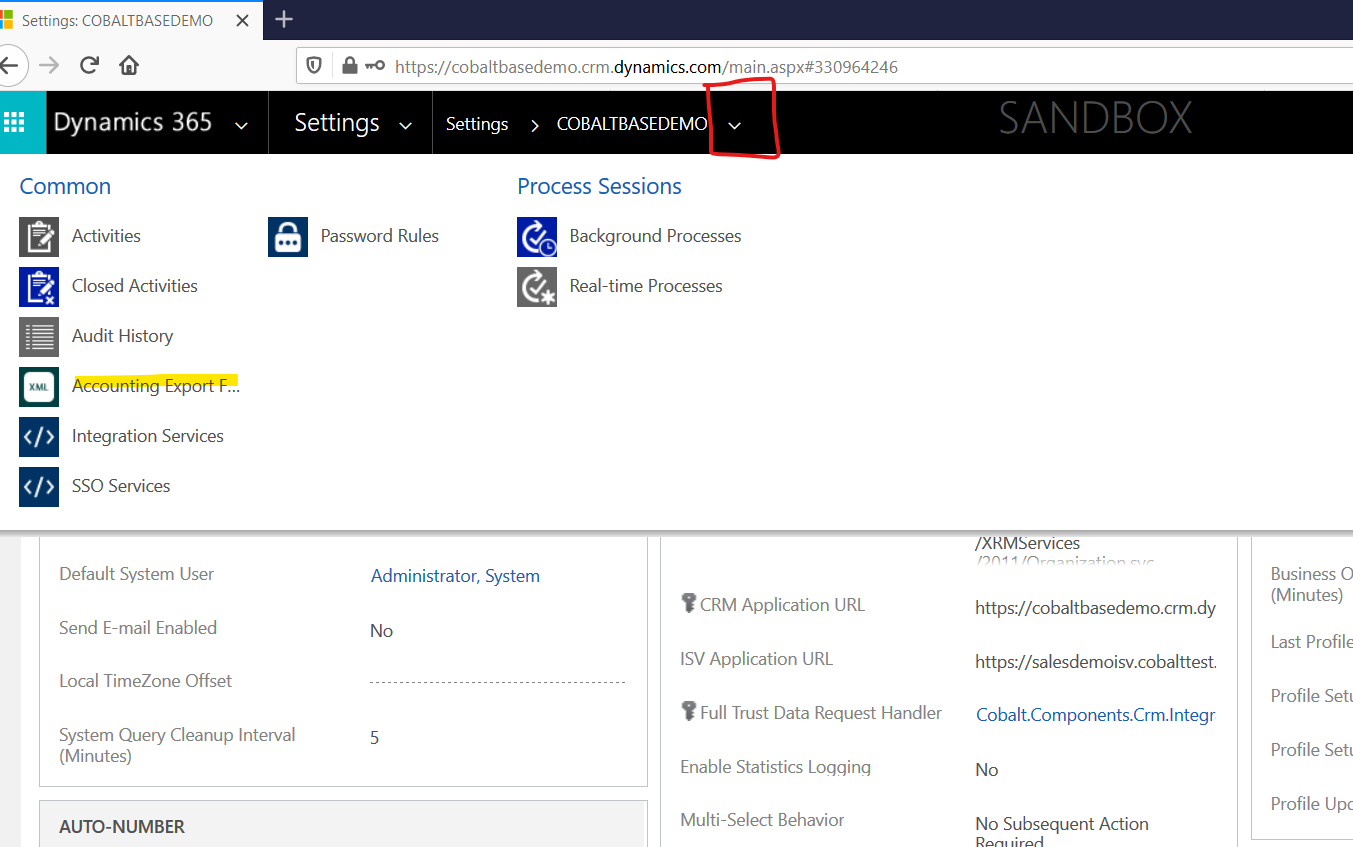
3. Add an existing accounting export transformation file:
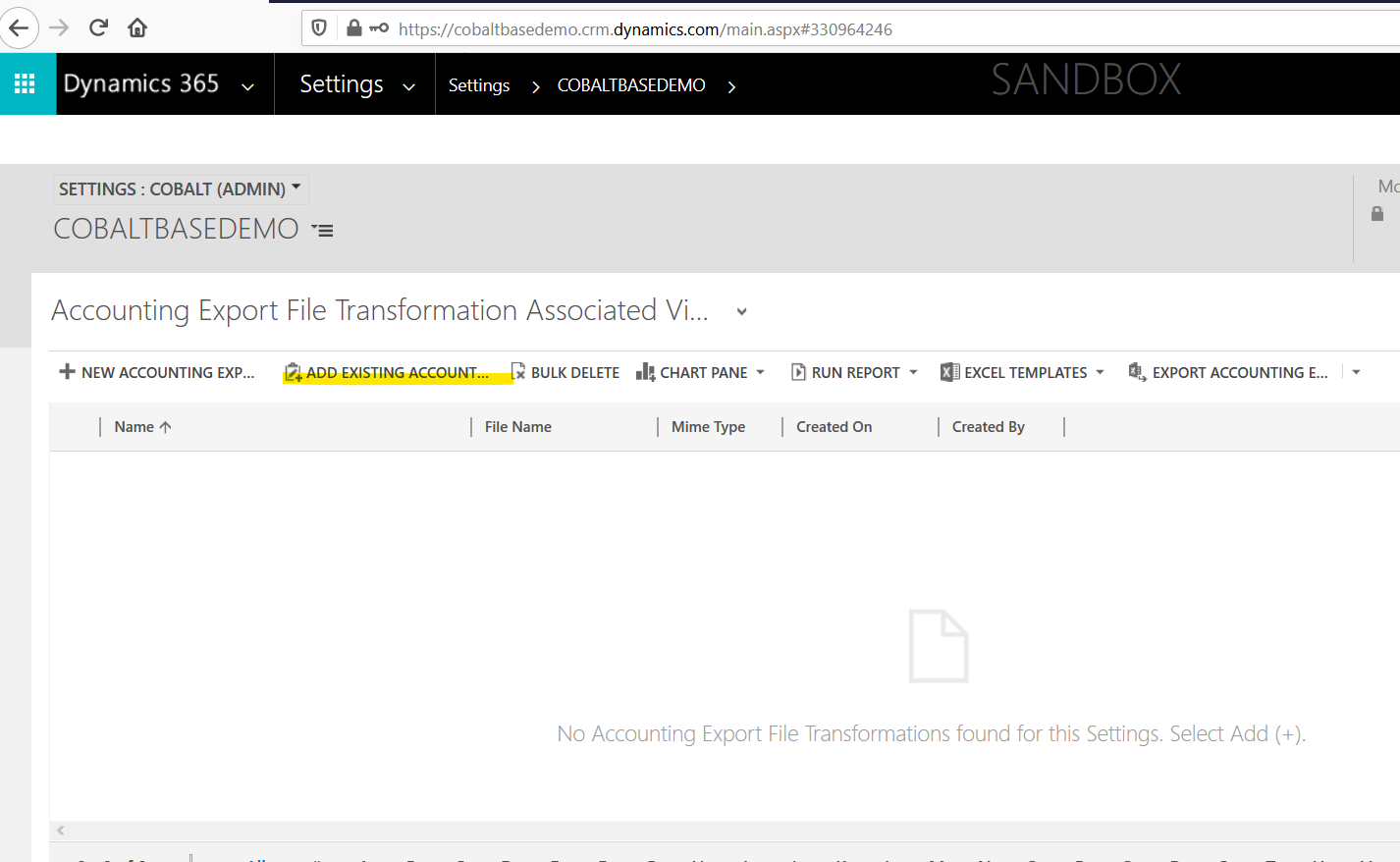
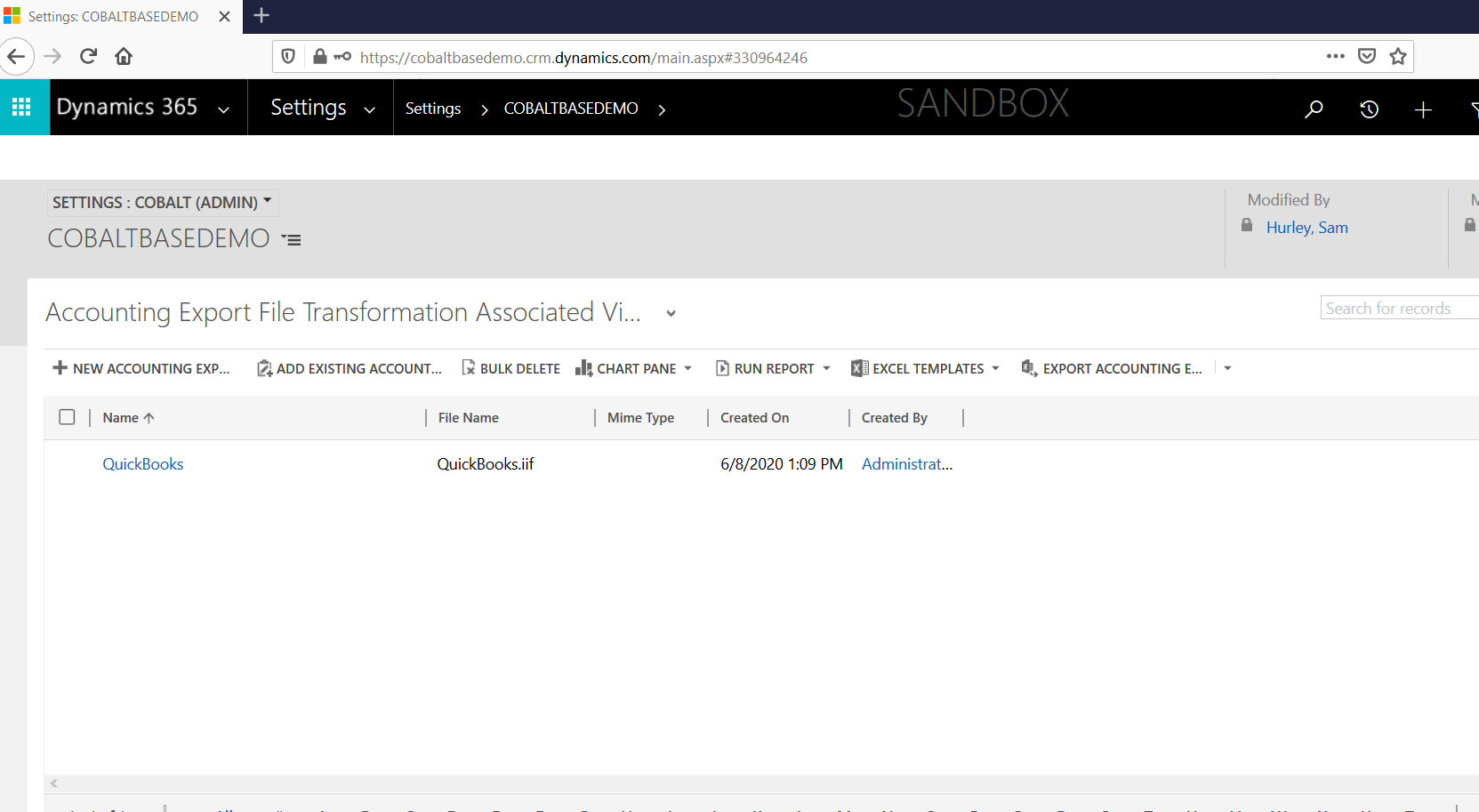
4. Add one of the out of the box transformation files:
5. Go to the Ecommerce module --> click 'Batches'
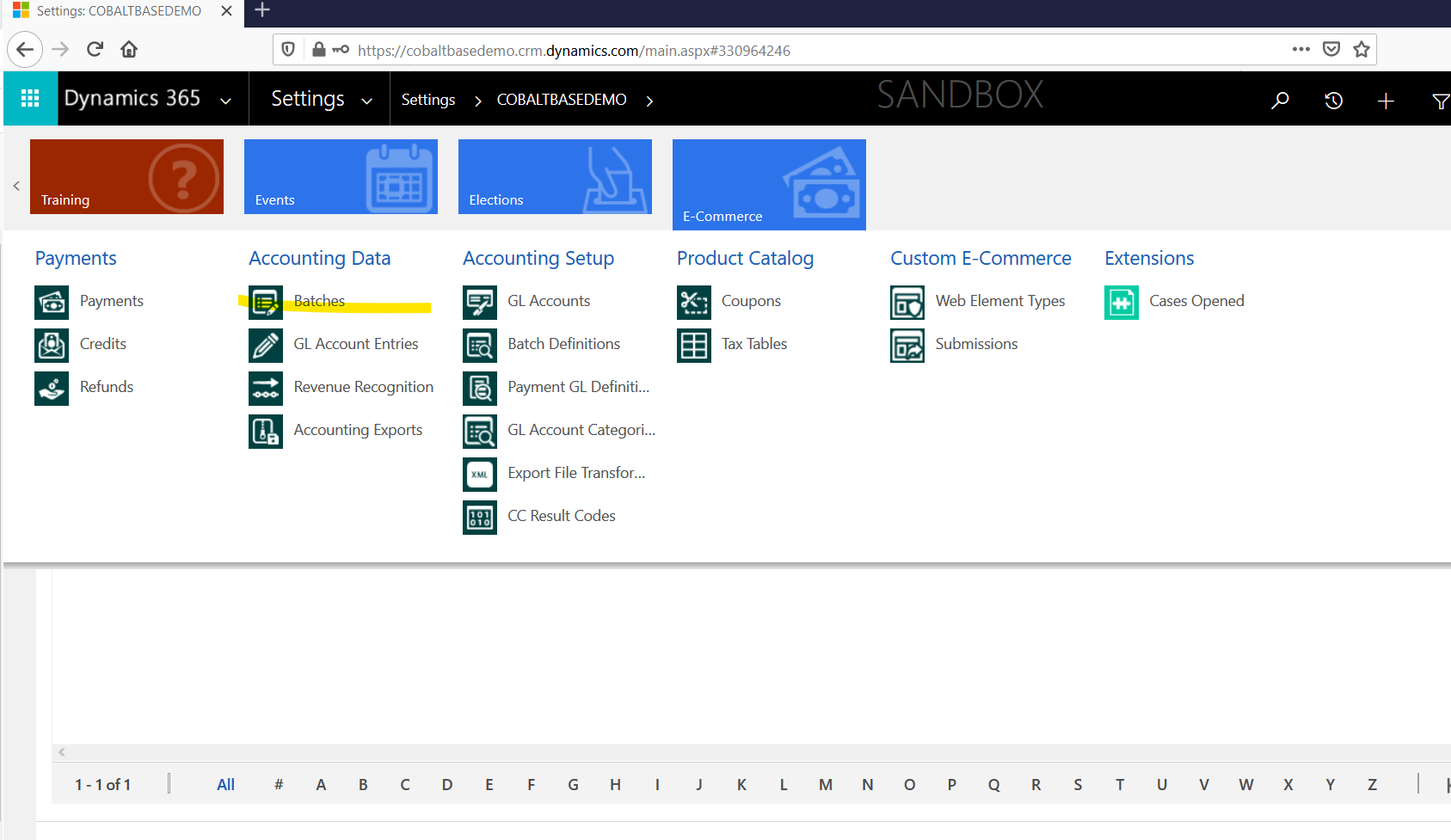
6. Click Accounting Export:
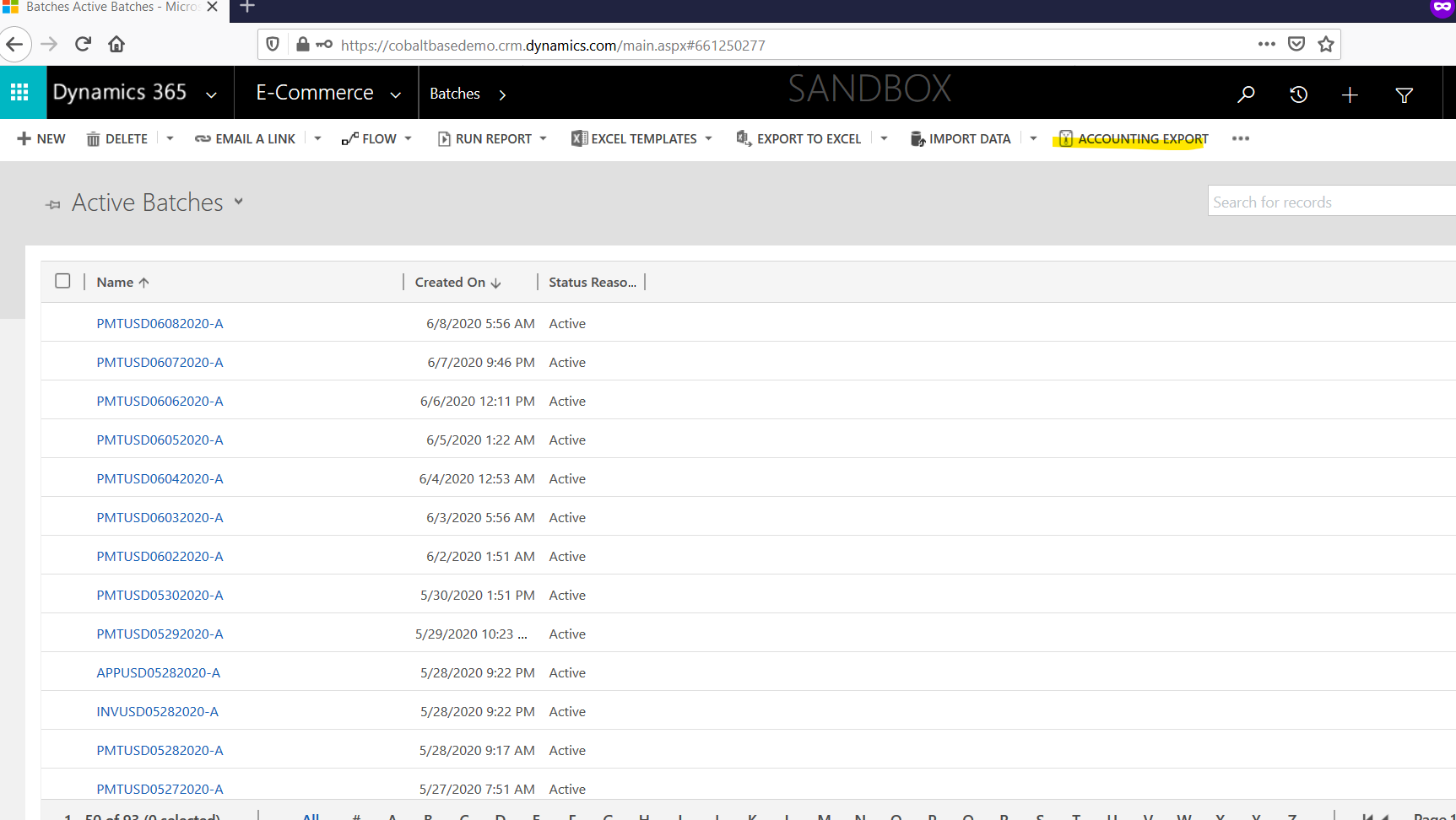
7. A wizard will launch where you can set the date for export and the batch view:
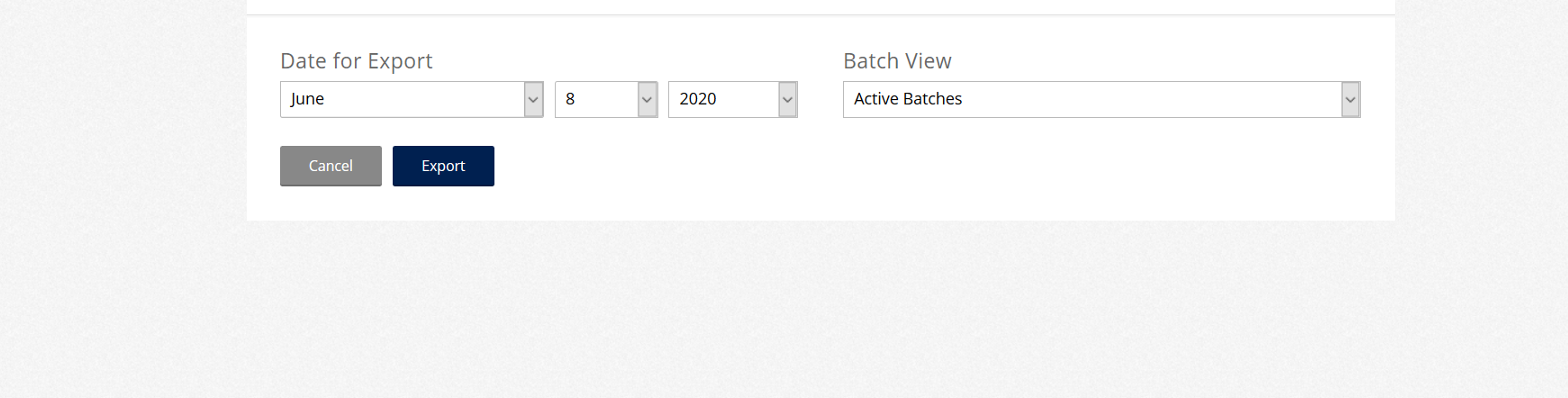
8. A zip file will be downloaded. You will need to extract the files from the folder. There should be an export file and a file for the accounting software you are integrating with:
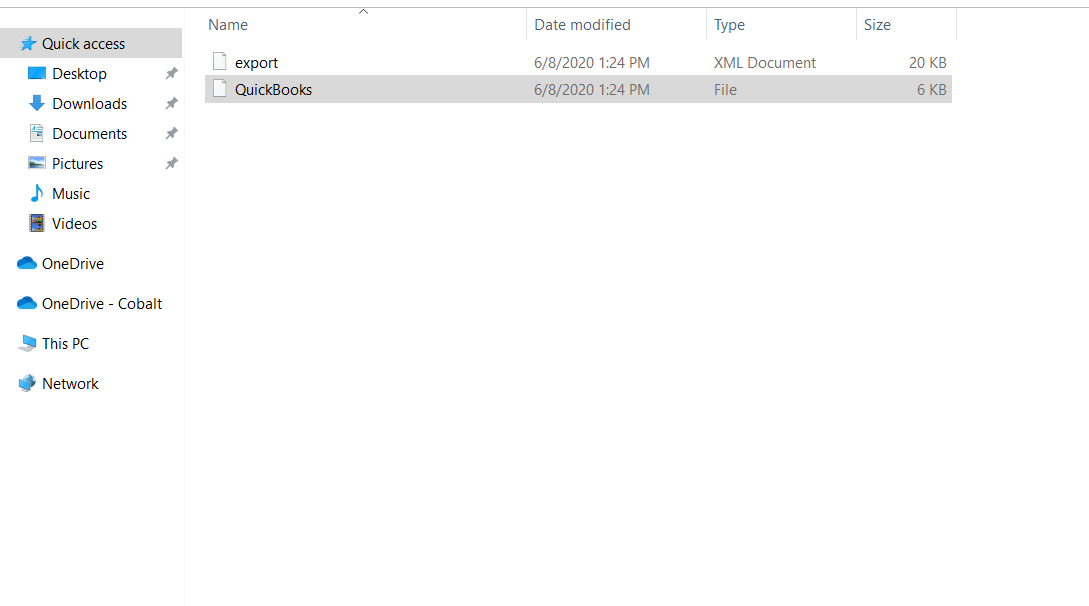
9. The export file will show an overview of the export:
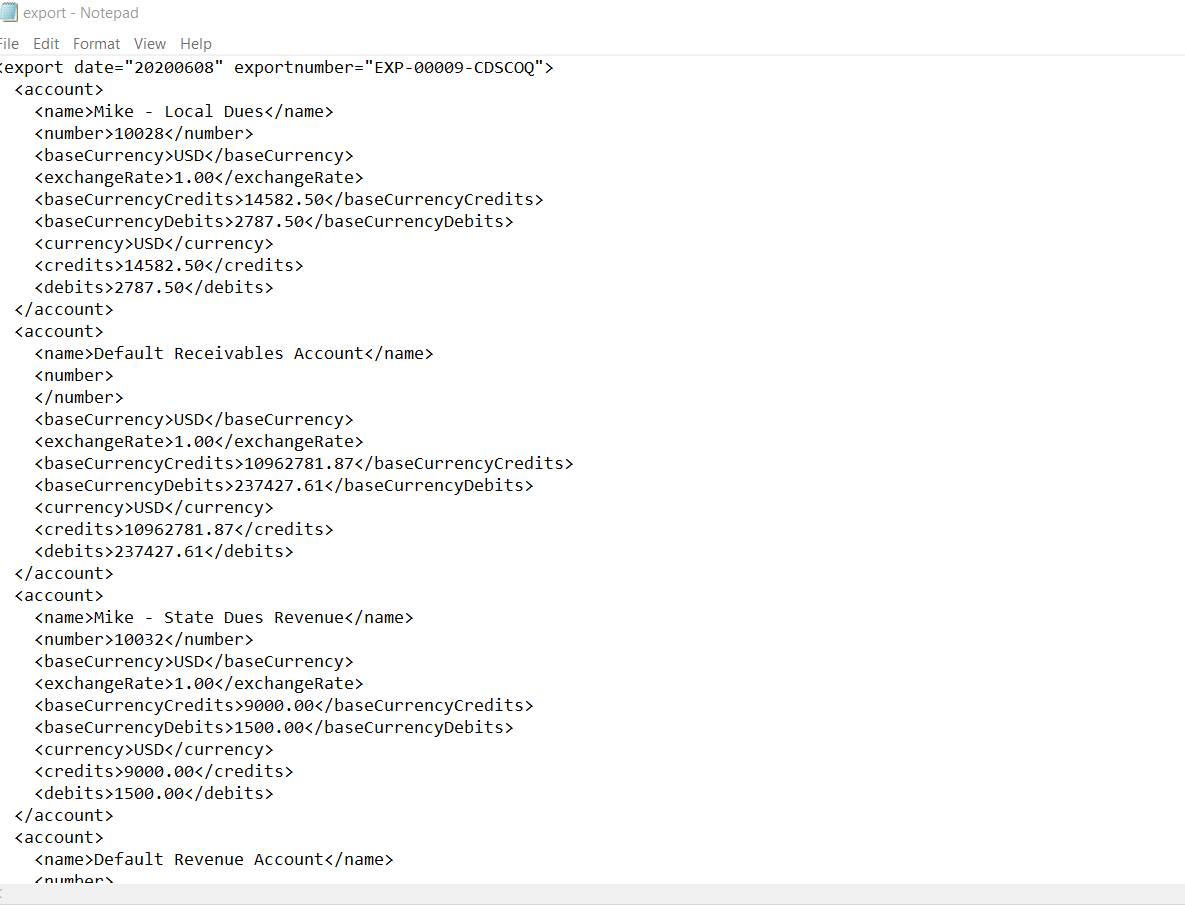
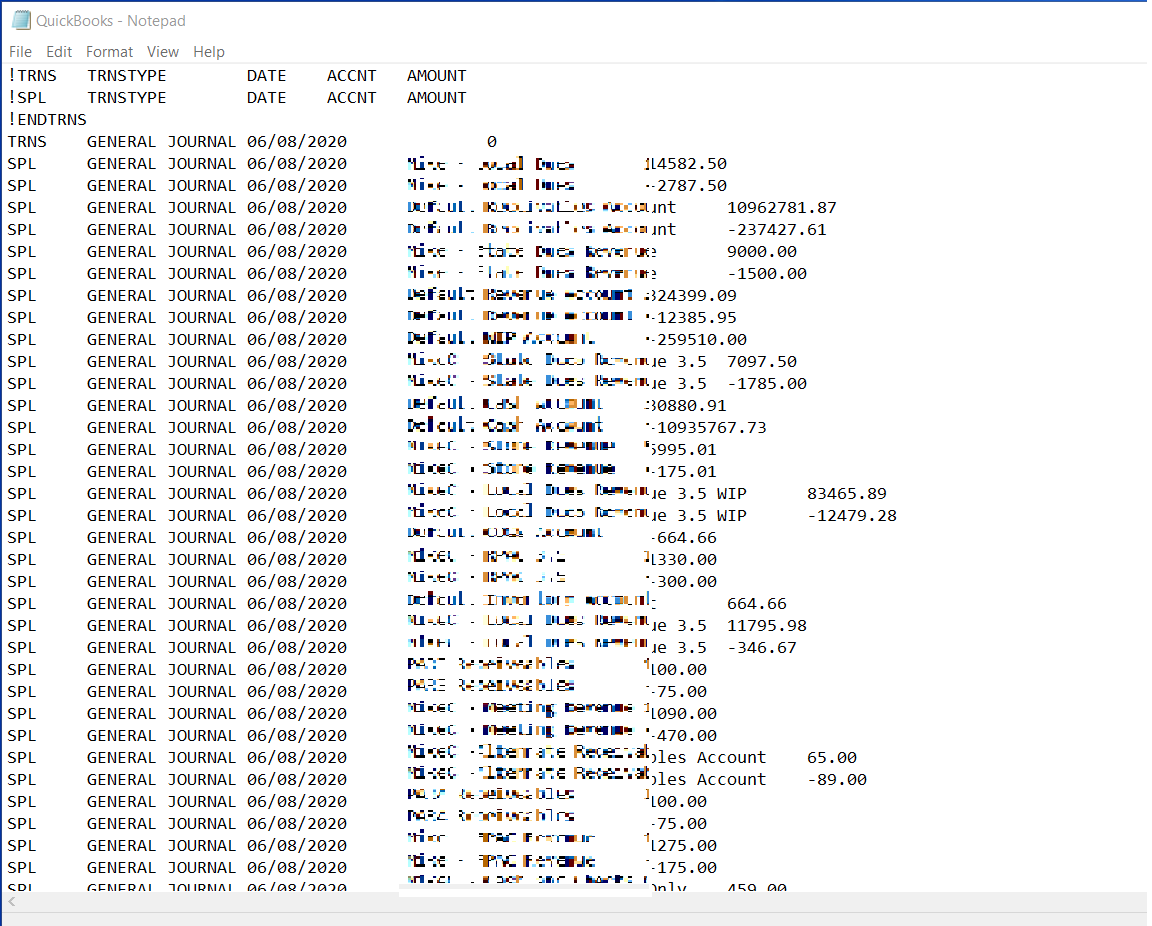
10. The QuickBooks file (or relevant accounting software file) can be opened to see what will be imported into the accounting software:
Note:
Detailed entries can be done with some customization. And complete integration is possible but requires custom development.
0 Comments